> ## Documentation Index
> Fetch the complete documentation index at: https://magicpatterns.mintlify.site/docs/llms.txt
> Use this file to discover all available pages before exploring further.
# Connect to GitHub
> Attach a GitHub repository to your design so the agent builds with your real code
Connecting a GitHub repository attaches it to your design as context, so the agent can read your codebase and build with your real components, styles, and patterns.
We only need read access. Magic Patterns reads the repository to ground your
designs in your code; it does not write to your repo. Connecting a repo here
attaches it to a single design, it does not import a
[Design System](/documentation/design-systems/overview).
## Connect your GitHub account
The first time you connect a repo, you'll be prompted to connect your GitHub account so Magic Patterns can list your repositories and browse their folders. Once connected, your account stays linked for future designs.
## Attach a repository
In the editor prompt bar, open the **+** menu and choose **Connect Github**.
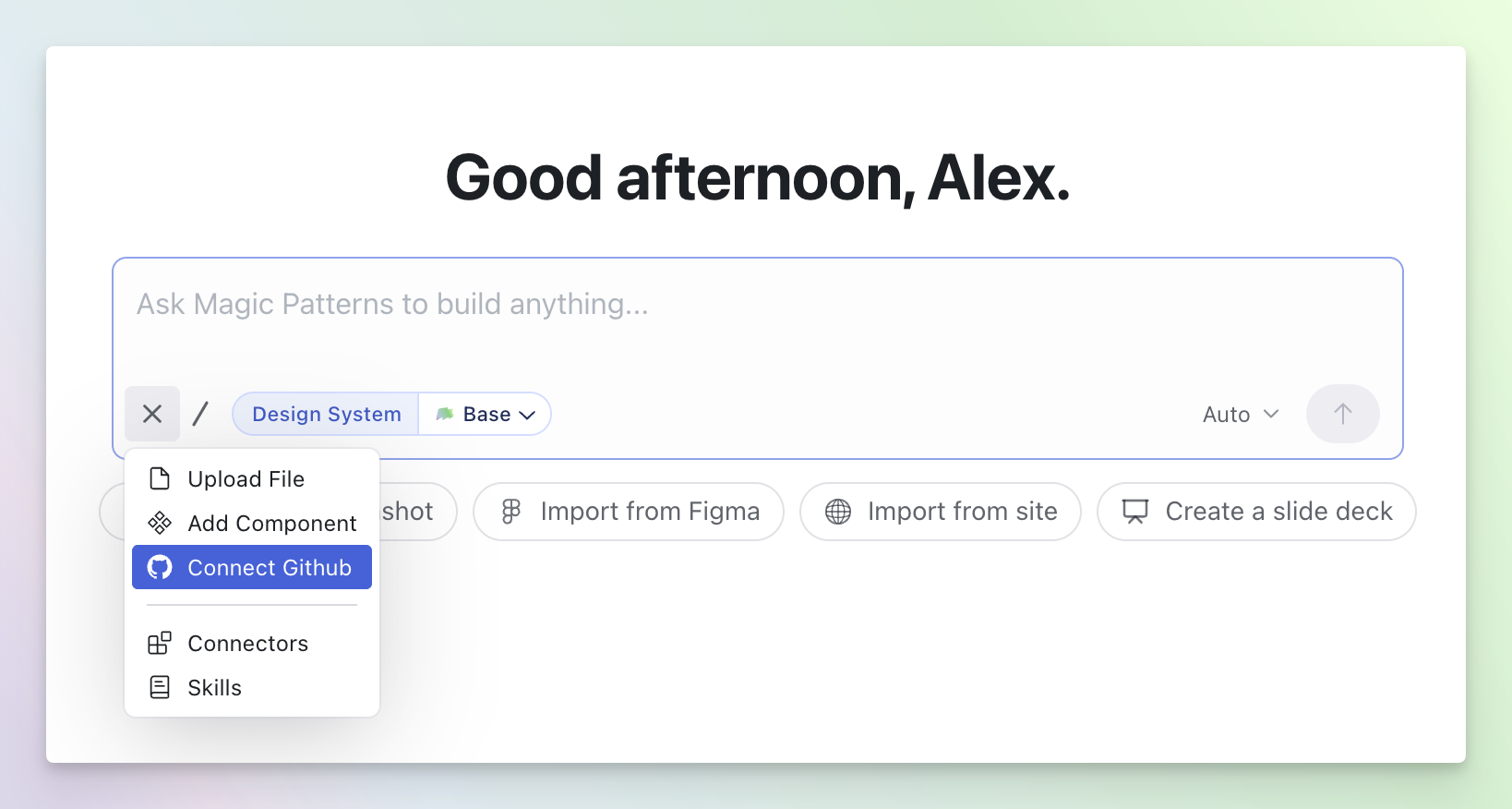 Start typing to autocomplete from the repositories Magic Patterns can see, or paste a repository URL directly:
```
https://github.com/your-org/your-repo
```
Start typing to autocomplete from the repositories Magic Patterns can see, or paste a repository URL directly:
```
https://github.com/your-org/your-repo
```
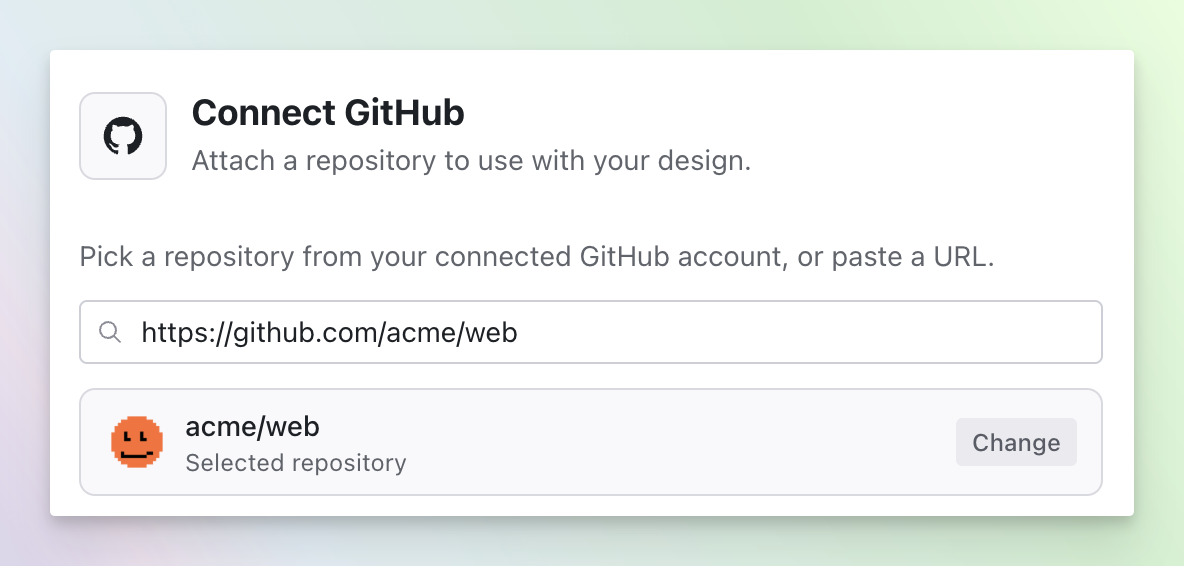 Once the repo resolves, browse its folders and select the subfolders you want the agent to use — for example, the folder that holds your components. For large repos, narrowing to a subfolder keeps the agent focused on the relevant code.
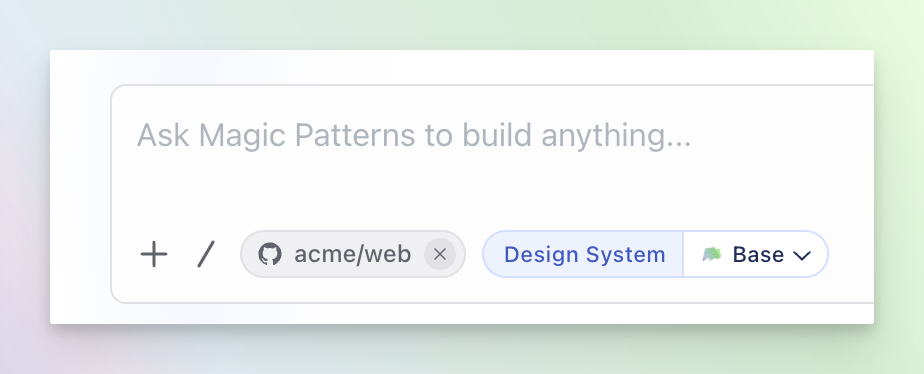
Click to attach the repository. It appears as a chip above the prompt bar, and the agent can read it while building.
Once the repo resolves, browse its folders and select the subfolders you want the agent to use — for example, the folder that holds your components. For large repos, narrowing to a subfolder keeps the agent focused on the relevant code.
Click to attach the repository. It appears as a chip above the prompt bar, and the agent can read it while building.
 You can paste a `/tree//` folder URL or a `/blob/...` file URL
and Magic Patterns will pre-select that subfolder for you.
## Managing attached repos
* **Edit subfolders.** Click a chip to change which subfolders that repository uses.
* **Remove.** Remove a chip to detach the repo. Recently removed repos are offered as one-click **existing connection** shortcuts (with their saved subfolders) so re-attaching keeps your previous selection.
If a repo shows a connection issue, either GitHub isn't connected for your
account, or the repository was attached by someone else and you don't have
access to read it.
## What's Next?
Link a repo permanently as a Design System to reuse components across designs.
Pull context from your other tools, databases, and apps into your prompts.
You can paste a `/tree//` folder URL or a `/blob/...` file URL
and Magic Patterns will pre-select that subfolder for you.
## Managing attached repos
* **Edit subfolders.** Click a chip to change which subfolders that repository uses.
* **Remove.** Remove a chip to detach the repo. Recently removed repos are offered as one-click **existing connection** shortcuts (with their saved subfolders) so re-attaching keeps your previous selection.
If a repo shows a connection issue, either GitHub isn't connected for your
account, or the repository was attached by someone else and you don't have
access to read it.
## What's Next?
Link a repo permanently as a Design System to reuse components across designs.
Pull context from your other tools, databases, and apps into your prompts.